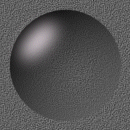
1. Open new image- 130x130.
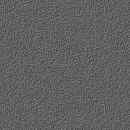
I have used my last background texture for this tutorial. You may download
it if you wish. Just click on the square to the left.
2. Go to Layer > New. Name
this layer Circle and leave all settings as is.
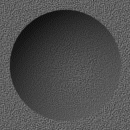
3. On Circle layer draw
an antialiased circle 110 pixels in diameter.
4. Go over to your color
palette and choose black as your background color. Then using the eye drop
tool choose one of the colors from your background image. I used RGB 107-107-107.
5. Floodfill your circle
with a linear gradient set at 325 degrees.
6. Select your eraser tool.
Set brush size to 135 (this is flexible, use what you prefer), opacity
to 76 and Hardness to 0. Click once where the cross is in the image on
the left.
**HINT** You can vary your
opacity using either the opacity slider on the Layers Toolbox, or by lowering
the opacity of the eraser and using multiple clicks.
7. Create another layer.
Name this Highlight. Deselect your droplet by clicking Ctrl+D.
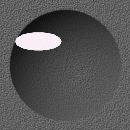
8. Draw an ellipse at the
top of your droplet and fill with white. Deselect.
9. Go to Image > Blur >
Gaussian Blur. Set Radius to 6
10. Click Ctrl+R and rotate
Left - Free - 45. Make sure All Layers is not selected.
11. Go back to Gaussian
Blur and set Radius to 8.
12. Go to the Circle Layer
and using your Magic Wand tool click outside the droplet. Click Shift+Ctrl+I.
this inverts your selection so the droplet is selected.
13. Go to Background layer.
Go to Image > Deformations > Punch. Set the Effect to 63%. This gives your
droplet a more 3D look.
14. Keeping the droplet
selected, click Ctrl+C (to copy it) then Ctrl+V (paste as new image).
15. Click Shift+S and resize
to your liking. I used 50x50, Bilinear Resample, Resize All Layers (I leave
this on as default) and Maintain Aspect Ratio.
16. To keep the droplet
matching I then pasted it onto a bit of background. This is the easiest
way to make a transparent cheat! I've actually been lazy here and not given
the instructions for a real transparent droplet.
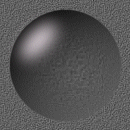
**HINT** To create a different
effect, such as the one on the left, just add drop shadow! This is the
exact same droplet, but the drop shadow makes it look larger. I prefer
this effect.

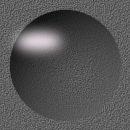
 This
is the finished product
This
is the finished product