|
|
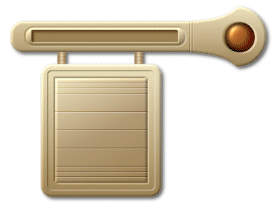
| Making layered shapes gives you lots of freedom to create shapes of your own. No more stock standard ding shapes, rounded rectangles, etc, etc. As you will see, you can create just about anything your mind can envision! | ||
| First things first though. Create a new transparent image. Make it 400x200. | ||
| Now this first layer is going to be your background later on, and it will help you with deciding on what's to be deleted, so fill it with a dark colour. I tend to use black most of the time. | ||
| Click L on your keyboard to open the layer toolbox. Position it so you can see all of your new image. | ||
Click on the icon  to create a new layer. Name the layer rec. Keep all properties the same.
 |
||
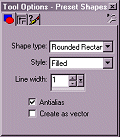 |
If it's not already open, click
on the O key to open your Tool Options box. Then click the preset shapes
tool  Go
to the option box and click on rounded rectangle. Make sure antialias is
selected and create as vector isn't. Style is filled and the line width
is set to 1. Go
to the option box and click on rounded rectangle. Make sure antialias is
selected and create as vector isn't. Style is filled and the line width
is set to 1. |
|
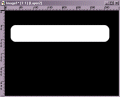 |
Using white, draw a long rectangle across the new layer. Leave enough room either end for editing. Then, create a new layer. Name it circ and keep all the properties as they are. | |
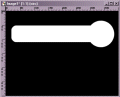 |
Click on the presets shapes tool
and click on circle. Draw a circle on the end of the rounded rectangle.
You can do this circle in a different colour if you prefer. In the end
it won't matter what colour anything is.
 |
|
 |
Once again, create a new layer.
Call this one bez. On this layer we are going to join the top (and bottom)
of the circle to the top edge of the rectangle in a nice slope using the
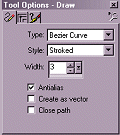
bezier line tool.  Click on the line tool and in your options box, choose Type-Bezier Curve,
Style-Stroked, Width-3 and check antialias.
Click on the line tool and in your options box, choose Type-Bezier Curve,
Style-Stroked, Width-3 and check antialias. |
|
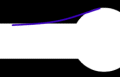 |
Beginning from the top middle of the circle draw a line down to the rectangle top. See the pic to the left. for those of you who have never used this tool before, you have to hold your mouse down until you reach your destination with this line. Then you can bend it to your will! (If you need help, just email me) | |
 |
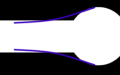
The easiest way to do this for the
bottom is to copy that line and paste it in, flipping it over and positioning
it where you want it.
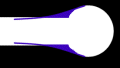
When it's positioned where you want
it, carefully colour in the empty spots. Make sure you don't miss any as
it'll show up later if you do. colour over the semi transparent spots on
the INSIDE of the line as well.
|
|
| Alrighty. By now you
have a 4 layered image, taking up about a meg of room! If you haven't saved
by now then DO IT :) Remember to always SAVE SAVE SAVE!
Now we are going to move the bez layer in behind the rectangle. |
||
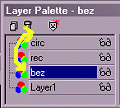 |
On you layer tool box, grab the
bez layer and drag it drown to between the background (layer 1) and rec
layers. Drop it there. See the shape starting to emerge? This is our final
shape. There are various other things we can do with this shape but this
is a basic layered shape.
Now, if you have any bits hanging out (sounds rude!) you can clean them up gently with the eraser tool. That's why I use a black background! |
|
| To put it all together,
the first thing we need to do is get rid of the background while we merge.
So, on the layer palette, see the little glasses? Click on the glasses
on Layer 1 and a red cross will appear on them. Also, the black background
disappears!
Go to Layers>Merge>Merge Visible. Click it. If you can't click it (it's greyed out) then just go back to the layer palette and click on any button other than the Layer 1 button. Go back to Layer>Merge>Merge Visible and it will work. Once you do that you will notice you now only have two layers. Layer 1 and Merged. |
||
| Turn Layer 1 back on if you like (click on the glasses again). Then click on your Selection tool and in the options box choose rectangle and turn on antialias. Making sure you are on the merged layer, draw a rectangle around your new shape. Click once on the shape. This selects the shape itself | ||
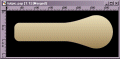 |
Go to the layer palette and create
a new layer. Fill your shape with whatever your heart desires! I used a
linear gradient fill of pale yellow and medium brown.
Deselect. |
|
| Go to the Merged layer and trash it! To trash it, just click on the merged layer and then click on the little trash can. All this does it remove the faint white outline you can see (also that entire shape you made before!!!) When was the last time you SAVED? :) | ||
| Now you get to play with your brand new shape :) I tend to save these shapes to the alpha channel and keep them in psp format. That's it. You can use endless combinations of shapes. Guess if you're smart enough (not me!) you could draw your own shapes and mix 'n' match. | ||
|
||
|
Sets
~ Sites
~ Java
~ Tutorials
~ Tubes |
||