
|
|
|
Water Mark |
|
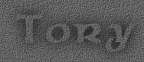 |
1. Open a new image or the
image you wish to work on.
2. For this tutorial I have used my background texture. 3. Select your Text tool. I used Celtic, Bold, 28. Regardless of what font you use, make sure you select Antialias and deselect Floating. 4. Go to Image>Effect>Drop Shadow. Use the settings - Opacity 100, Blur 20, Offset 0x0. |
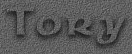 |
1. Follow all the steps above, changing the settings in Drop Shadow to Opacity 100, Blur 8.7, Offset 3x0 |
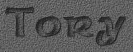 |
1. Follow Steps 1-3.
2. Go to Image>Effect>Cutout. Use the settings - Opacity 62, Blur 5.5, Offset 3x3. 3. Go to Image>Effect>Drop Shadow and use the settings - Opacity 67, Blur 1.6, Offset 1x1. |
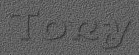 |
1. Follow Steps 1-3.
3. Go to Image>Effect>Drop Shadow and use the settings - Opacity 49, Blur 2.4, Offset 1x1. |
|
Sets
~ Sites
~ Java
~ Tutorials
~ Tubes |
|