
|
|
|
Frame First off the bat I best tell you that the frame is made using two different plugins. Blade Pro and Filter Factory Gallery A. If you don't have these, they are quite easy to find. For Blade Pro, point your browser here. For Filter Factory Gallery A, point your browser here. To begin, we need to decide on colours. If you want to use your own colours, go for it. If you want the same as this tutorial, download to your hard drive the coloured image below. 
Step 1.You will need to open a new image, sized 247 x 124. Make sure the image background is white and the Image Type is 16.7 Million Colours (24 bit) Step 2.Open the colour graphic above, or choose a colour of your own and make sure it is the background colour. You can do this by using the dropper tool. Go to Image/Add Borders and click symmetric and put in 5. It should look like the image below 
Step 3. Next, using the Magic Wand, click on the border to select it. Now is when you will need the plugin. Go to Image/Plugin Filters/Filter Factory Gallery A and select Pool Shadow. I left all the settings the same except for Shadow Intensity and Brightness, which I set to 84 and 161. Click OK. It should look like the image below. 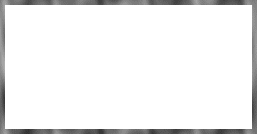
Step 4. Whilst this is still selected, you can either use the other plugin called Blade Pro, or you can use Cutout in the Image/Effects menu. If you do use Cutout, this will make your image darker so it's best to use a lighter colour to begin with. I have used Blade Pro. See image below. 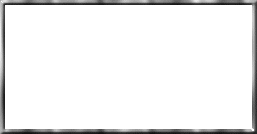
Step 5. Deselect by clicking on the Selection tool and right clicking in the middle of the frame. Go to your colour palette and select a colour about half as dark as your current colour. To use the same as me, save the image below to your hard drive. 
Step 6. Make sure you make this colour the background colour, and move the darker to the foreground. Go to Images/Add Borders again, this time making the border 10. 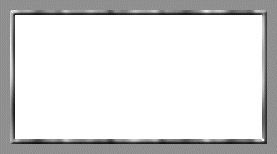
Step 7. Grab your Magic Wand tool again and click anywhere on the border. Grab your Airbrush tool and if not opened, open the Control toolbox. In tools control, select Paper Texture Fruit Peel, set your brush size to 28 and your Opacity to 57. Spray on the border until you have the desired texture. See below. 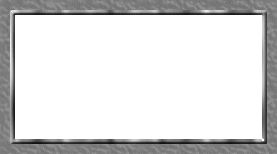
Step 8. Keeping the outer edge selected, go again to Image/Plugin Filters/Filter Factory Gallery A and select Mirror,Mirror. Use default settings. See image below. 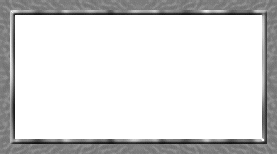
Step 9. Go to Selections and click invert. This selects the inside frame. Go to Image/Effects/Drop Shadow and click. Set the Color to Black, Opacity to 77, Blur to 13.4, Vertical and Horizontal to 0. 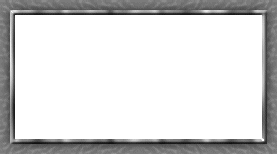
Step 10. Deselect and go to Image/Add Border again, and make a border of 5. 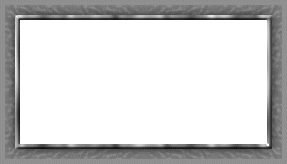
Step 11. Repeat Steps 3 & 4. Then go to Image/Effects/Drop Shadow and decrease your Blur to 6.3. Deselect and it's all yours! 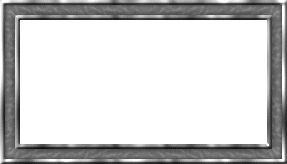
Need a hand? Mail me :) |
|
Sets
~ Sites
~ Java
~ Tutorials
~ Tubes |