Ancient Future Designs
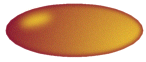
Oval Button
This really needs no
introduction, so let's just get stuck into it, eh?!
 |
1. Open a new image, 200x200
and 16 Million Colors.
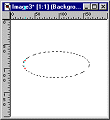
2. Using your Selection
tool, draw an ellipse, making sure you click Anti Alias in the Control
Tool Box. |
 |
3. Choose your colours,
making one lighter than the other. I have used a gold/yellow as the foreground
colour and a pink/burgundy for the background colour.
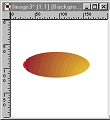
4. Click on Flood Fill,
and in the Control box, choose Sunburst Gradient. Go to Options, Blend
Normal, Vertical & Horizontal 100%. |
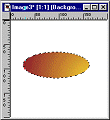 |
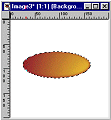
5. With image still selected,
go to Image >Noise > Add and choose a setting between 1 and 5. This makes
the lines from the fill blend better. |
 |
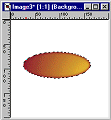
6. Still selected go to
Image > Effect > Cutout and make your settings
Shadow Color = Background
Color
Opacity = 85
Blur = 7.3
Vertical & Horizontal
= -1 |
 |
7. Repeat step 6, changing
only Vertical & Horizontal properties to 1.
Deselect image.
8. Go to Layers > New and
create a new layer. I called mine highlight. |
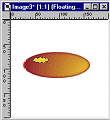 |
9. Draw an ellipse to create
your highlight. Don't make it too large. Colour it with your paint brush,
then deselect. |
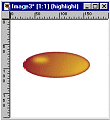 |
10. Go to Image > Blur >
Gaussian Blur.
Set your radius to 4. Click
OK. |
11. Go to Image > Rotate.
Set at 15% Left and make sure All Layers is NOT selected. Click OK.
12. Using the Mover Tool,
position the hightlight where you wish it to be.
13. Go to Layers > Merge
> Merge Visible.
14. That's it. You know
how to make a lovely little button now!
One tip here. If you begin
your button on a transparent layer,
it is much easier to add
in a drop shadow.
|