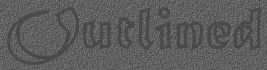
|
| 1. Open new image. Use the
settings: 380x200, White, 16 Million colors. |
| 2. Fill with your texture.
I used my background from these pages. |
| 3. Select your Text tool.
I used Matura Script Capitals - Regular - 48. Make sure Antialias and Floating
are selected. Place your text in the left hand corner of your image. |
| 4. Click Ctrl+C (copy) then
Ctrl+V (paste as new image). |
| 5. Go back to original.
Go to Selections>Modify>Contract. Use the setting: 3 |
| 6. Invert this selection
Shift+Crtl+I. |
| 7. Click Ctrl+C then Ctrl+E
(paste as transparent image) and place this somewhere that the other text
doesn't show through. |
| 8. Invert and click Ctrl+V. |
| 9. Select your Selection
tool and in the transparent part of the image, select the textured cutout
pieces. |
| 10. Click Ctrl+C. Go to
your first paste (step 4) |
| 11. Click Ctrl+E to paste
in the texture. |
| 12. Click Ctrl+D to deselect.
Click Ctrl+C to copy. |
| 13. Go back to your original
image and click Ctrl+Z until it is back to the texture you began with. |
| 14. Click Ctrl+E to paste.
That's it! |
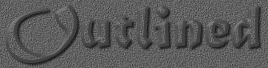
|
| To get the image above,
I used Blade Pro and the preset bevel_shiny.
I then added a drop shadow. |
|
Sets
~ Sites
~ Java
~ Tutorials
~ Tubes
Prices
~ Copyright
~ New
~ Illustrated
Interfaces ~ Splash
FX
Awards
~ Portfolio
~ Home
~ Email
Graphics
© 1999-2000,
Ancient
Future Designs |
